FreeLipSync Review: How to Fix Lip Sync in Multilingual Video Dubbing
Discover how FreeLipSync helps video editors synchronize translated audio with facial movements. Explore its AI Video Dubbing features, step-by-step workfl

大包子
FreeLipSync Review: How to Fix Lip Sync in Multilingual Video Dubbing
Why Multilingual Video Dubbing Often Looks Unnatural
As a freelance video editor working with international clients, I regularly handle projects that require the same video to be published in multiple languages. One recurring challenge is lip synchronization. A client may provide a professionally recorded English presentation, but when I replace the original narration with Spanish, French, Japanese, or German audio, the speaker's mouth movements no longer match the new dialogue.
Traditional dubbing solves the audio problem, not the visual one. It replaces the original speech with another recording, but the person's mouth continues following the original performance. Different languages also have different syllable structures, pronunciation patterns, speaking speeds, and sentence lengths. Even when the translated voice sounds natural, the mismatch can make the video feel artificial.
This is where FreeLipSync becomes an interesting option. It is an AI-powered lip-sync platform designed to adjust visible mouth movements to replacement audio or newly generated speech. Its Video Lip Sync and AI Video Dubbing workflows are particularly relevant to freelance editors, international marketing teams, and video localization professionals who want to reuse existing footage without recording every language version from scratch.
What Can FreeLipSync Do for Multilingual Video Projects?
FreeLipSync offers two particularly relevant workflows.
Video Lip Sync allows users to upload an existing face video and provide replacement audio. The system generates corresponding mouth movements based on the new speech track. This is useful when a client already has professionally recorded translations from voice actors.
AI Video Dubbing offers a more localization-oriented workflow. Users can upload a talking video and either enter translated dialogue or upload an already prepared dubbed audio track. The platform then generates speech when text input is selected and adjusts the visible lip movements to match the new language.
The distinction matters: Video Lip Sync focuses on matching existing audio to video, while AI Video Dubbing provides a workflow specifically designed around replacing dialogue with another language.
Neither workflow should be confused with automatic translation. I would still prepare and review the translated script separately before generating the final video.
Official tool: https://freelipsync.com/tools/ai-video-dubbing
Preparing Video and Audio Before Starting
In my localization workflow, preparation is just as important as the generation process.
I would organize three essential elements:
1. Original video
FreeLipSync accepts MP4, MOV, and WebM video uploads. For better results, I recommend selecting footage with:
One clearly visible speaker.
A relatively front-facing camera angle.
Good lighting around the mouth and chin.
Minimal motion blur.
Limited facial obstruction from microphones, hands, or other objects.
A close-up or medium close-up is generally easier to inspect than a distant wide shot.
2. Translated audio
Prepare the final voice recording before uploading it. The audio should be clean, with minimal background noise, music, echo, or clipping.
MP3, WAV, M4A, and other supported formats can be used depending on the selected workflow. I also recommend checking the beginning and ending of the recording to remove unnecessary silence.
3. Translation and timing
A literal translation is not always suitable for dubbing. For example, a short English sentence may become considerably longer in German or Spanish.
I would review the translated script with a native speaker whenever possible and adjust sentence structure without changing its meaning. The replacement audio should have a duration reasonably close to the original delivery.
How to Use FreeLipSync for AI Lip Sync
The following is the workflow I would use when preparing a localized client video.
Step 1: Upload the Original Video
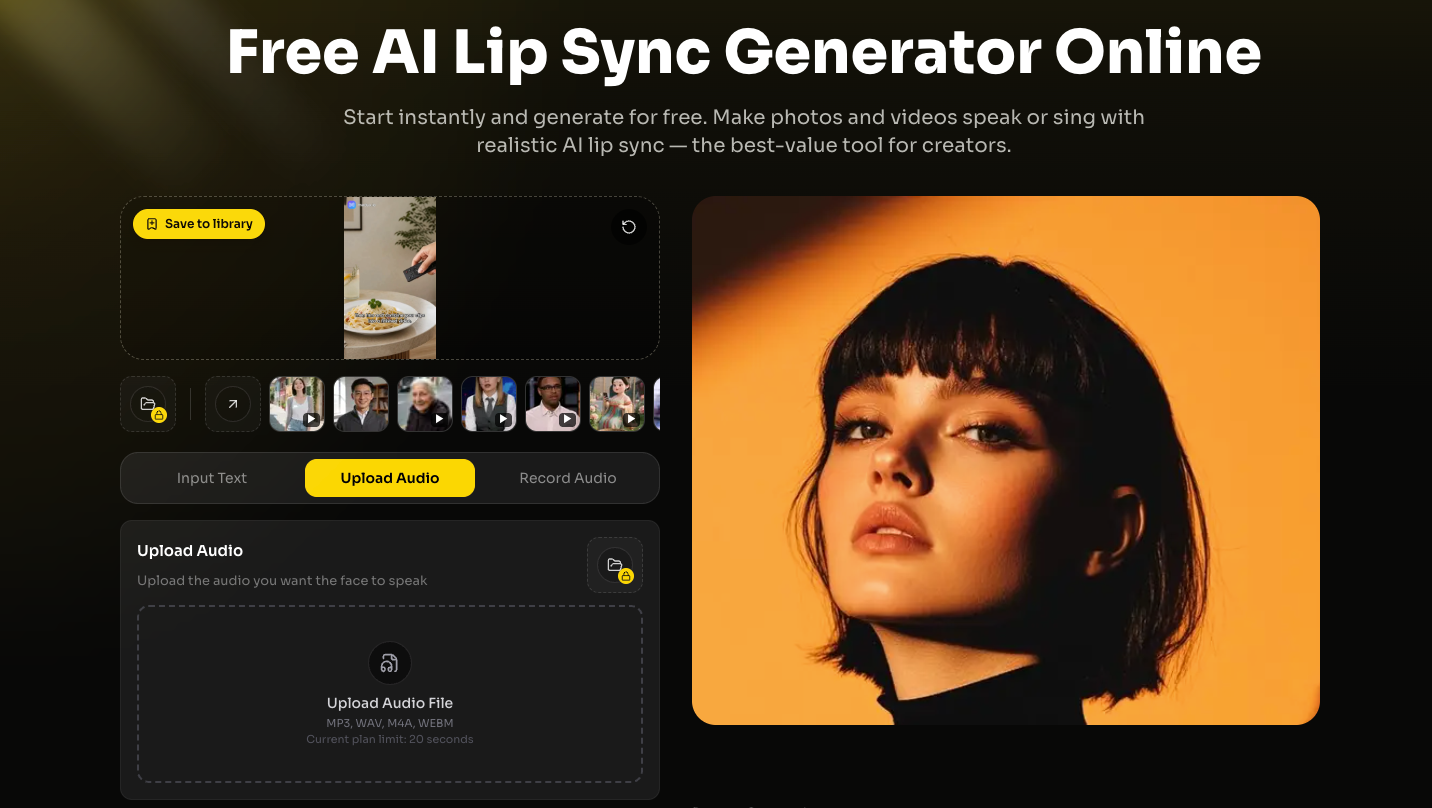
Open FreeLipSync's AI Video Dubbing page and locate the video upload section.
Select the original talking-head video from your computer. Check that the correct file has loaded and that the speaker's face is visible in the preview.
Before proceeding, identify any scene cuts, camera movements, or moments when the speaker turns away from the camera.
Step 2: Add the Translated Audio
Choose the Upload Audio option and import the completed voiceover.
Alternatively, if the translated script is ready but the recording has not been produced, select Input Text and use the available voice options.
For professional projects, I generally prefer a reviewed recording from a voice actor because it provides greater control over pronunciation, emotion, and delivery.
Listen to the uploaded audio once more to confirm that it is the correct language version.
Step 3: Start the Lip-Sync Generation
After confirming both inputs, select the appropriate generation option.
FreeLipSync processes the replacement speech and adjusts the speaker's visible mouth movements frame by frame.
Processing time can vary depending on the footage, duration, and selected plan. I would avoid promising a fixed completion time to clients before checking the actual processing requirements.
Step 4: Preview the Generated Video
Once processing is complete, preview the output in the browser.
I would pay particular attention to three areas:
Whether mouth opening and closing correspond to the spoken syllables.
Whether the lips close naturally during sounds such as B, P, and M.
Whether the facial movements remain consistent during longer sentences.
Step 5: Download and Continue Editing
After reviewing the generated result, download the video and bring it into your regular editing software.
I would then check subtitle timing, audio levels, scene transitions, background music, and overall continuity before exporting the localized version.
What Should Editors Check Across Different Languages?
AI Lip Sync for Multilingual Videos involves more than matching audio duration.
English and German: Pay attention to consonant clusters and longer compound words. German translations may occupy more speaking time than the original English dialogue.
Spanish and Italian: Their vowel-rich pronunciation can create different mouth-opening patterns. Check whether the generated movements look natural during longer vowel sequences.
Japanese: Sentence rhythm, mora timing, and pauses can differ significantly from English. I would inspect short pauses and sentence endings carefully.
French: Some sounds involve limited visible lip movement, while others require noticeable rounding or closure. The visual result should be evaluated alongside the actual pronunciation.
Across all languages, facial expressions matter too. A technically synchronized mouth can still look unnatural if the original speaker appears serious while the replacement voice sounds enthusiastic.
Where Can AI Video Dubbing Help?
I see several practical applications:
Product demonstrations: Localize founder presentations and software walkthroughs without repeatedly recording the same demonstration.
Online courses: Prepare different language versions of lessons while retaining the original instructor's visual presence.
Corporate training: Adapt internal onboarding and employee training videos for international offices.
Overseas marketing: Produce localized promotional videos for different regional audiences.
These applications are particularly useful when reshooting would involve additional scheduling, equipment, or production costs.
Limitations Editors Should Understand
FreeLipSync does not eliminate every localization challenge.
First, synchronization quality may vary between languages because pronunciation and mouth movements are not identical across linguistic systems.
Second, facial angle matters. Side profiles, partially covered mouths, and rapid head movements can make accurate reconstruction more difficult.
Third, poor source footage limits the available visual information. Low resolution, compression artifacts, and insufficient lighting can affect the final appearance.
There are also practical usage limits. According to the current pricing page, the Free plan supports videos up to 20 seconds, while Starter supports up to three minutes and Pro supports standard lip-sync videos up to 60 minutes. Pricing and entitlements should be checked before committing to a production workflow.
Most importantly, I would never deliver an AI-generated localized video without human review. Editors remain responsible for translation accuracy, audio quality, facial consistency, and final presentation.
Final Thoughts: Is FreeLipSync Worth Adding to an Editing Workflow?
From my perspective as a freelance video editor, AI lip-sync technology is most valuable when it reduces repetitive localization work rather than replacing professional editing.
FreeLipSync provides two useful approaches: matching an existing voice recording to a video and generating a localized version from translated text or audio. This makes it worth considering for product videos, educational content, corporate presentations, and overseas marketing campaigns.
However, I would treat it as one stage in a larger production process. Translation, voice recording, lip-sync generation, visual inspection, and final editing still require careful coordination.
For editors managing multiple language versions of the same video, that combination can make localization more manageable without assuming that AI will produce perfect results every time.
Frequently Asked Questions
1. Can FreeLipSync synchronize a video with translated audio?
Yes. Its AI Video Dubbing and Audio to Video Lip Sync workflows allow users to upload a face video and provide replacement audio.
2. Does FreeLipSync automatically translate videos?
No. You need to prepare the translated dialogue yourself or use an external translation workflow before adding the new text or audio.
3. Which video and audio formats are supported?
The video upload supports MP4, MOV, and WebM. Audio formats include MP3, WAV, M4A, and other formats listed by the selected tool.
4. Can I use FreeLipSync for long training videos?
Yes, but duration depends on the plan. The current pricing page lists up to three minutes for Starter and up to 60 minutes for standard lip-sync videos on Pro.
5. Will AI lip sync look perfect in every language?
No. Results depend on source footage, facial visibility, pronunciation, audio quality, and language characteristics. Human review remains essential before publication.
About the Author
大包子
No bio available