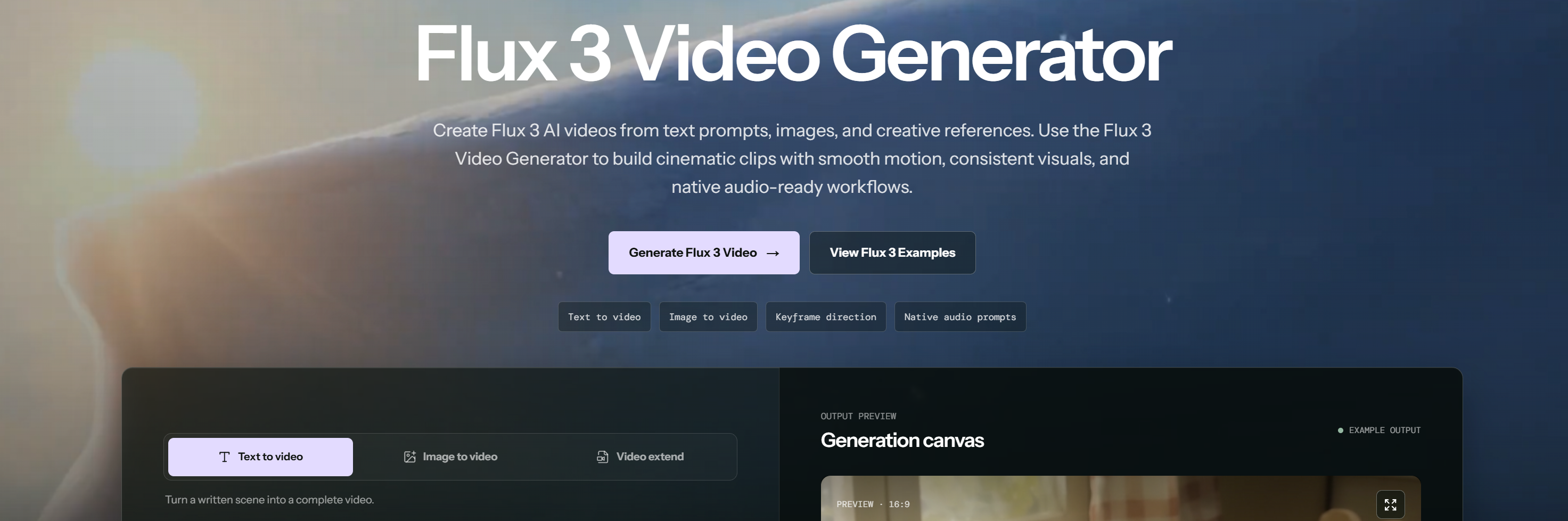
Flux 3 AI Video Generator: Text-to-Video, Image-to-Video & Keyframe Features
Learn when to use Flux 3 Video for text-to-video, image-to-video, or keyframe planning, with practical examples, limitations, and prompt tips.

john smith
Choosing a Flux 3 Video workflow starts with a simple question: what material do you already have?
Use text-to-video when the scene can be freely created. Use image-to-video when a person, product, or composition must remain recognizable. Consider keyframes when the final image matters as much as the opening.
Making this decision before writing the prompt can prevent a common problem: asking one generation to invent a scene, preserve a product, create several movements, move the camera, and stop on an exact final shot.
What Is Flux 3 Video?
FLUX 3 is a multimodal foundation model from Black Forest Labs. The company has announced video capabilities involving text prompts, input images, visual references, keyframes, and audio.
These inputs support three different workflows:
Text-to-video creates a scene from a written description.
Image-to-video adds movement to an existing image or uses it as a visual reference.
Keyframe-to-video guides a transition between defined visual moments.
They are not interchangeable. The best choice depends on what needs to stay consistent.
Before generating, identify the details that should not change. These may include a person’s identity, a product shape, a food arrangement, clothing, a logo, or the final composition.
When to Use Text-to-Video
Text-to-video makes sense when you have an idea but no source image that must be preserved.
Imagine a cyclist moving through a city street after the rain. The reflections, evening light, and quiet mood matter more than the exact bicycle model or location.
A focused prompt could be:
A cyclist moves slowly along a wet city street after the rain. Store lights reflect on the road. The camera follows from a steady distance in natural evening light.
This prompt defines the subject, action, environment, and camera behavior without turning the scene into a long checklist.
Text-to-video is useful for:
Concept scenes
Atmospheric social clips
Article visuals
Background footage
Ideas without a fixed person or product
It is less suitable when an exact package, branded object, real person, or existing layout needs to be reproduced.
Too many movements can also weaken the result. If the cyclist turns around while cars pass, signs flash, leaves fly, and the camera circles, no action has a clear priority.
Start with one main action. Add another only when it supports the subject.
When to Use Image-to-Video
Image-to-video is more practical when a suitable picture already exists.
A restaurant may have a finished dish photo. A shop may have a product image with the correct color and packaging. A photographer may want to add slight movement to a portrait without rebuilding the subject.
The source image already defines:
The subject
The composition
The colors
The lighting
The background
The prompt should focus on movement instead of describing the entire image again.
Consider a small bakery with a clear photo of a pastry on a ceramic plate. A useful planning prompt would be:
Keep the pastry, plate, and table arrangement unchanged. A small amount of steam rises slowly while the camera moves slightly closer.
This follows a practical rule: one main action and one quieter secondary change.
The text-to-video vs image-to-video workflow is easier to understand in these terms. Text-to-video creates the visual foundation. Image-to-video starts with that foundation already supplied.
A source image does not guarantee perfect consistency. Large rotations, dramatic camera moves, background changes, and several moving objects can still pull the result away from the original subject.
Image-to-video is also a poor choice when the source is blurry, crowded, tightly cropped, or missing the space needed for movement.
When to Use Keyframes
Keyframes are useful when a video needs a planned destination.
Return to the bakery example. The opening image shows a pastry on a plate, while the final composition needs to show the same product inside its package. A text prompt alone may leave too much uncertainty if that final layout is important.
A keyframe plan gives each input a clear purpose:
The first frame establishes the opening composition.
The last frame defines the intended destination.
The prompt describes the transition between them.
This approach can be considered for:
Ingredients becoming a finished dish
Closed packaging becoming open packaging
An empty table becoming a complete setting
A product detail leading to a full product view
One planned composition transitioning into another
The two frames still need a visual relationship.
A pastry close-up and its package on the same table may share colors, lighting, and subject matter. A pastry followed by an unrelated shopping-center scene asks the transition to invent too much.
Similar aspect ratios, lighting, and subject positions can make the intended movement easier to follow. They do not guarantee a particular result.
Which Workflow Should You Choose?
WorkflowBest starting pointMain advantageWhen it may not fitText-to-videoA written ideaMore room for visual explorationExact subject details must be preservedImage-to-videoAn existing photoStarts from a defined compositionThe image is unclear or the planned change is too largeKeyframesStart and end imagesGives the clip a destinationThe frames are visually unrelated
A project can use more than one method. Text-to-video may help explore an idea, while a selected still image can later become the basis for a more controlled image-to-video plan.
What to Check Before Generating
A short planning check can reduce unnecessary revisions:
Is the main subject easy to identify?
Which details must remain unchanged?
Is there one clear primary action?
Does the environment need to move?
Is camera movement necessary?
Do the start and end frames share a visual connection?
Do you have permission to use the image, person, logo, or product material?
Motion should have a hierarchy. If the subject already moves noticeably, the camera can remain quiet. If the subject is almost still, a gentle camera push may provide enough movement.
Current Availability and Limitations
Black Forest Labs describes FLUX 3 as an Early Access model. Its published information includes text-to-video, image-guided video, keyframe transitions, and native audio among its announced video capabilities.
This does not mean every capability is generally available in every interface. Black Forest Labs has said that FLUX 3 capabilities are being introduced in phases, with early-access periods before wider rollout. Access conditions and available controls may change.
The site discussed here, Flux 3 AI Video Generator, is an independent website and should not be presented as an official Black Forest Labs property. Information shown on that site should be distinguished from Black Forest Labs’ model announcements.
An announced capability, an Early Access feature, and an option displayed by an independent service are different kinds of information. Check what the current interface actually provides before planning a project around a specific control.
Common Problems
The subject changes too much
The movement may be too large, or too many elements may be changing at once. Reduce the main action and identify the details that should stay stable.
The background takes over
Environmental motion may be competing with the subject. Reduce background activity or keep the camera still.
The transition feels disconnected
The start and end frames may differ too much in lighting, composition, or subject position. Choose images with a clearer visual relationship.
These are troubleshooting directions, not guaranteed fixes. Output can vary with the source material, prompt, and available model implementation.
FAQ
Is text-to-video better than image-to-video?
Neither is always better. Text-to-video suits scenes that allow visual freedom. Image-to-video is more practical when an existing subject or composition must remain recognizable.
When should I use keyframes?
Use keyframes when both the opening and final composition matter. The two images should have enough visual continuity to support a reasonable transition.
How can I keep a product consistent?
Start with a clear product image, limit the amount of movement, and identify the details that should remain unchanged. Review labels, logos, shapes, and text before publishing.
Can I use a real person’s photo?
Only use material you have permission to use. Avoid presenting generated actions or events in a way that could mislead viewers about a real person.
Final Thoughts
Use text-to-video when the scene can be invented. Use image-to-video when the subject must remain recognizable. Consider keyframes when the ending needs tighter control.
The bakery example shows how these choices can work together: the source photo protects the opening composition, the prompt defines the steam and camera movement, and the final frame establishes the packaging shot.
These are planning examples, not claims of hands-on testing or guaranteed results. FLUX 3 remains in Early Access, and its capabilities are being introduced in phases. Careful preparation cannot remove every uncertainty, but it can reduce unclear prompts, excessive movement, and poorly matched inputs before generation begins.
About the Author
john smith
No bio available